
Initial Chatbot Setup for a Tour
Set up the first virtual tour chatbot for a selected location, including naming, welcome message, instruction prompts, guardrails, and activation state.
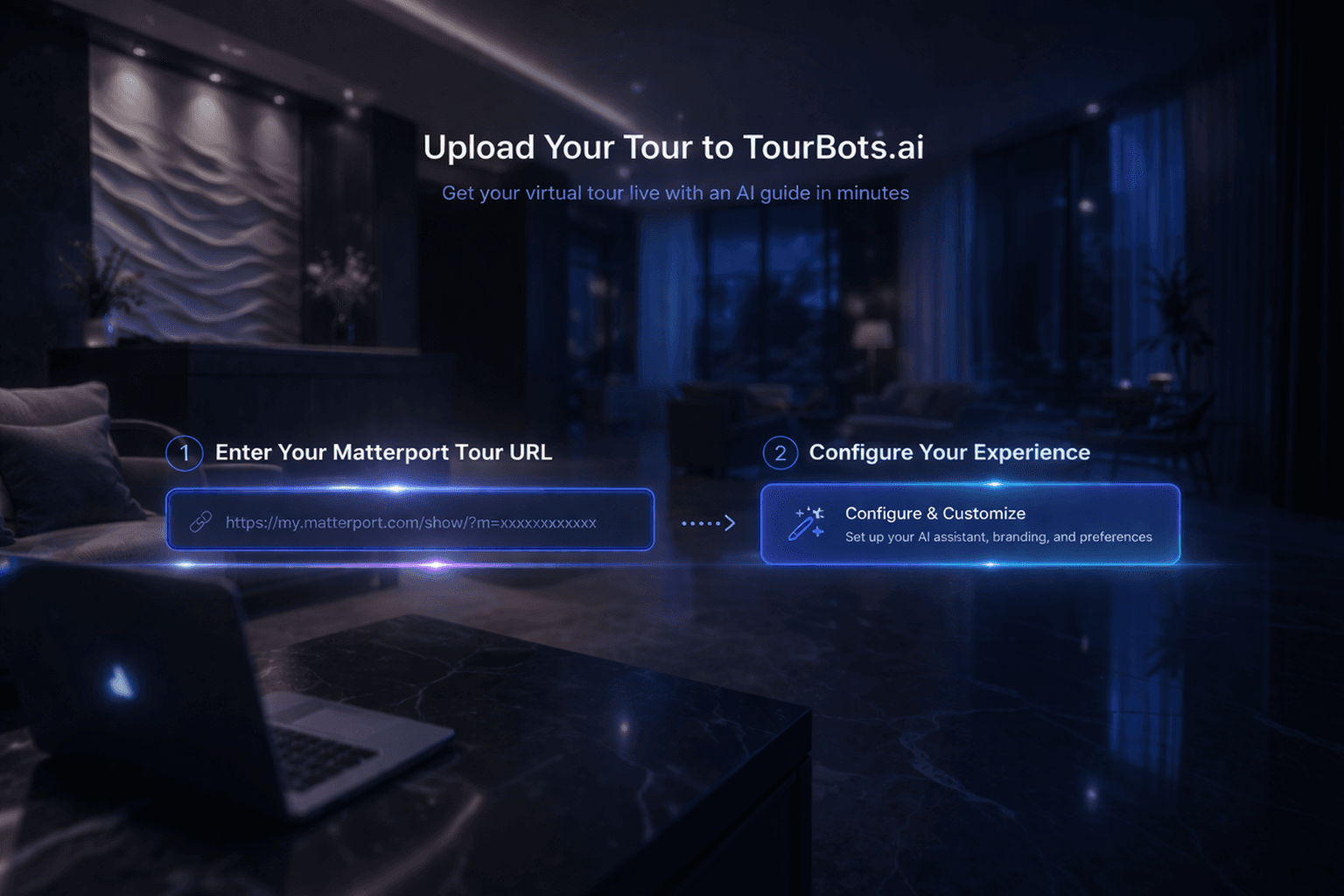
What this guide covers
This guide explains how to configure your first virtual tour chatbot for a selected location. You will select the correct tour, complete core chatbot settings, save configuration, and validate activation behaviour.
Before you start
- At least one tour location exists in Tours.
- You can access the Chatbot page.
- You know which location this chatbot should serve.
1) Select the correct tour location
- Open Chatbot from the sidebar.
- Use the location selector in the page header.
- Choose the target tour location.
Chatbot configuration is location-specific, so the selected tour must match your intended deployment.
2) Open chatbot settings and expand configuration
- Stay in the Settings tab.
- In Virtual Tour Chatbot Configuration, click Expand.
- Confirm the status badge and editable fields are visible.
If no config exists yet, the editor opens with defaults for this location.
3) Complete core configuration fields
Update the baseline settings:
- Name: internal/public chatbot name.
- Status: set Active on or off.
- Welcome Message: first message shown to visitors.
- Personality: tone and style guidance.
- Instructions: operational response guidance for this location.
- Enable Guardrails: on/off control.
- Guardrail Instructions: boundaries for out-of-scope requests.
Keep prompts concise, location-specific, and operationally clear.
4) Save configuration
- Click Save Configuration.
- Wait for the success confirmation.
- Recheck the selected location and confirm values persisted.
Saving creates or updates the location’s chatbot config and enables dependent setup blocks.
5) Validate post-save state
After saving, verify:
- The selected location still matches your intended target.
- Status reflects your activation decision.
- Core text fields persist after refresh.
- Information sections and triggers are now manageable for this config.
This confirms the chatbot is ready for deeper setup steps.
Common issues
- No tour selected: choose a tour in the header selector first.
- Fields do not save: retry after confirming session/auth state and selected location.
- Wrong chatbot changed: location selector was set to a different tour.
- Sections unavailable: save configuration first, then continue to information/triggers.
Validation checklist
- Correct location selected before editing.
- Name, welcome message, personality, and instructions are completed.
- Guardrails are configured appropriately.
- Activation status is intentional and confirmed.
- Configuration saves successfully and persists after reload.
Final note
Treat initial chatbot setup as the control layer for each tour location. Confirm location context first, keep prompts operational and precise, and only then proceed to information, documents, and trigger configuration.