
How to Train AI on Navigation Points
Save named tour positions and connect them to chatbot triggers so visitors can be guided to specific areas during conversations.
What this guide covers
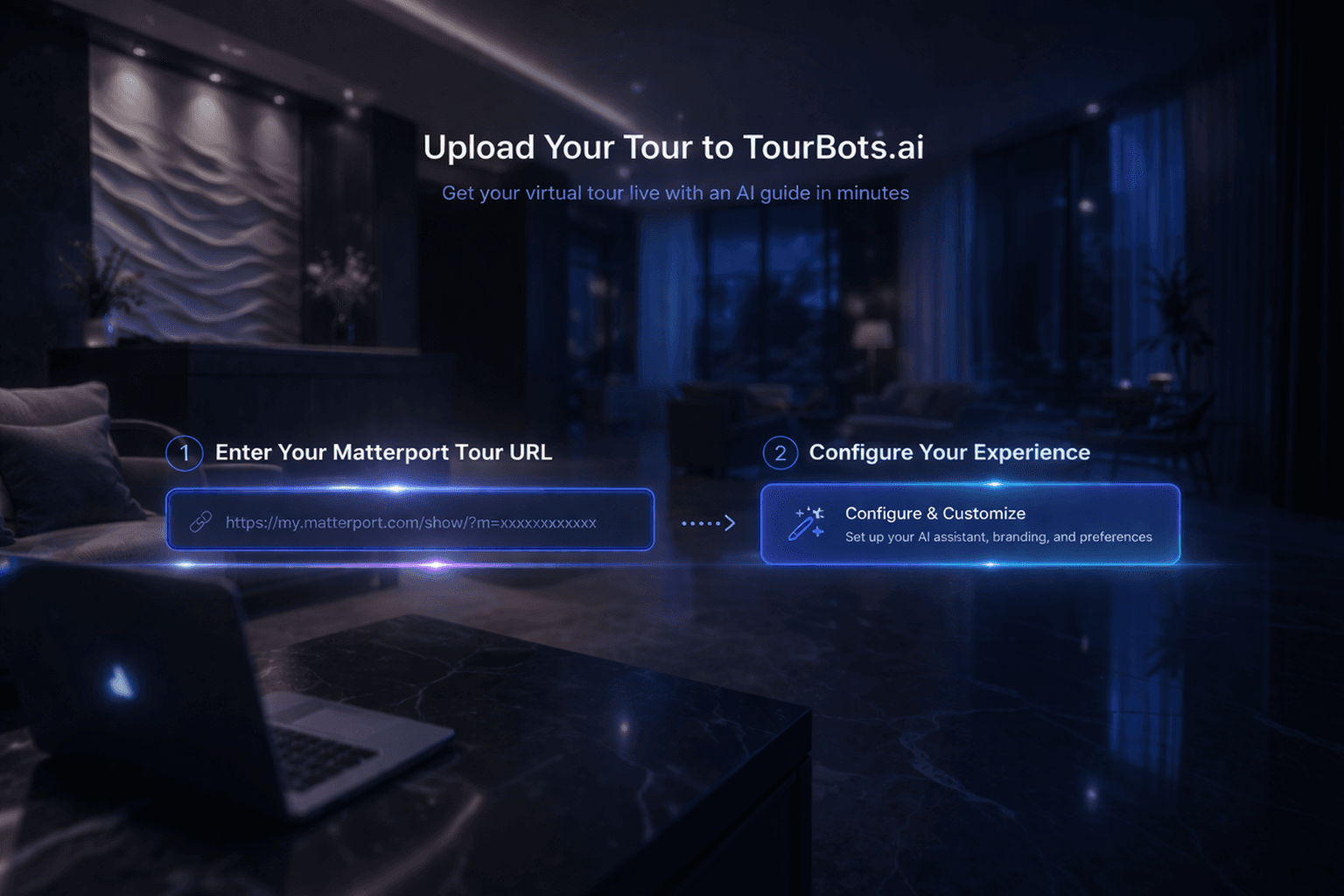
This guide explains how to train your tour chatbot to navigate visitors to specific areas. You will save navigation points in Tours, then connect those points to chatbot triggers in Chatbot Settings.
Before you start
- Your tour is already set up and loading in Tours > Tour Setup.
- You can move around the Matterport scene.
- You have chatbot access for the selected tour location.
1) Save your first navigation point
- Open Tours and confirm the correct location is selected.
- Move to the exact place you want visitors to reach.
- Click Save Position.
- Enter a clear area name (for example,
ReceptionorMain Hall). - Click Save Position.
This stores the sweep ID, position, and rotation for that area.
2) Build a clean position library
Open Manage Positions and check each saved point:
- Area name is clear and consistent.
- Point is in the correct place.
- Duplicate or obsolete points are removed.
Use Test Navigation in the positions list to verify each point before using it in triggers.
3) Open chatbot triggers for the same tour
- Open Chatbot from the sidebar.
- Select the same tour location in the chatbot selector.
- Open Settings.
- Expand Chatbot Triggers.
Your trigger setup is tour-specific, so the selected tour must match your saved points.
4) Create a navigation trigger
- Click Add Trigger.
- Set Condition to:
Keywords, orNumber of messages
- Set Action to Move to tour point.
- Select the target point from Tour point.
- Enter a clear Response message.
- Save triggers.
Example keyword condition:
- Keywords:
reception, front desk, check-in
Example response:
- "I can take you to the reception area now."
5) Test end-to-end chatbot navigation
- Open the tour chatbot in Tour Setup or Playground.
- Send a prompt that should match your trigger condition.
- Confirm the chatbot response appears.
- Confirm the tour navigates to the expected point.
If navigation does not fire, re-check condition keywords, selected tour point, and tour selection context.
Common issues
- Point does not appear in trigger dropdown: Confirm the point is saved for the same tour context.
- Trigger saves but no movement happens: Re-test with clearer keywords and confirm action type is Move to tour point.
- Wrong area opens: Rename and re-save positions with clearer labels, then reselect the correct point in the trigger.
- Too many similar points: Keep one canonical point per visitor-facing area.
Validation checklist
- Positions are saved with clear area names.
- Each point passes Test Navigation.
- Trigger action is set to Move to tour point.
- Chatbot prompt triggers both response and movement.
- Navigation remains consistent across repeated tests.
Final note
Treat navigation points as controlled operational assets. Keep naming consistent, remove unused points, and revalidate trigger mappings whenever you change tour layout or menu flows.