
How to Set Up Separate Tours Multiple Locations
Create and manage multiple tour locations under one account, and configure the correct chatbot per location.
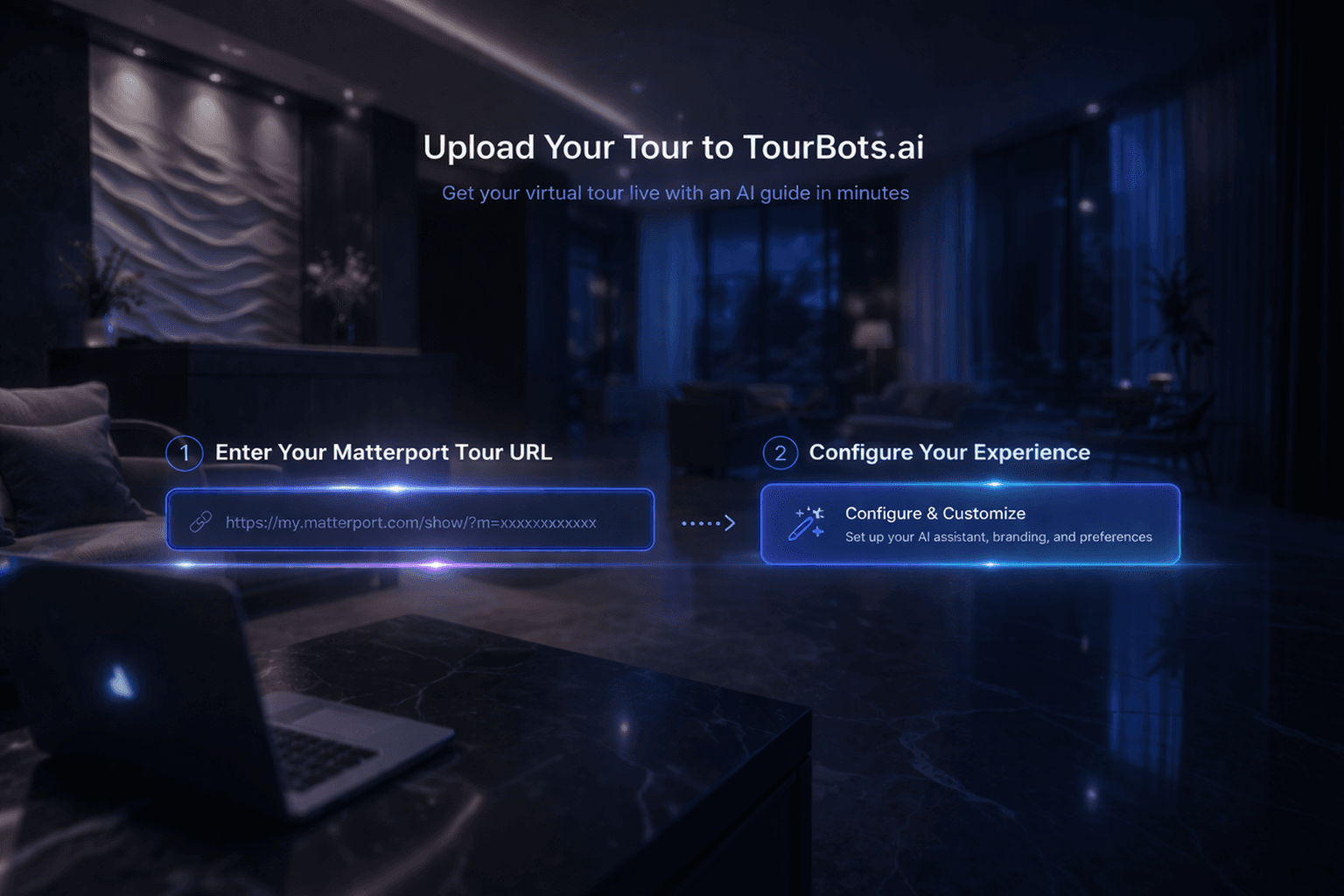
What this guide covers
This guide explains how to create separate tours as distinct locations in TourBots. You will add a new tour location, confirm location limits, and configure the chatbot for each location correctly.
Before you start
- At least one tour location already exists in Tours.
- You have the Matterport URL for the new location.
- You have available spaces, or a plan/add-on that allows another location.
1) Open the location manager
- Go to Tours.
- In the header location selector, click Manage Tour Locations.
- Review your current usage shown as Locations used: X/Y.
This confirms whether you can add a new location immediately.
2) Add a new tour location
- In Manage Tour Locations, click Add New Tour Location.
- Complete the tour form:
- Full Matterport URL
- Matterport ID
- Tour Name
- Tour Description (optional)
- Save the location.
The new location is created as a separate primary tour location.
3) Switch between locations from the Tours header
- Use the Tours page location selector.
- Select each location and confirm the viewer updates to the correct model context.
- Confirm the location title and associated models are correct.
This verifies that locations are separated correctly for operations.
4) Configure chatbot per location
Each location should have its own chatbot configuration.
- Open Chatbot from the sidebar.
- Use the chatbot tour selector to choose a location.
- Configure settings for that location.
- Repeat for each additional location.
This keeps answers, information, and behaviour relevant to each space.
5) Confirm location capacity and billing impact
If you cannot add another location:
- Check Settings > Billing for current plan and limits.
- Confirm whether an extra space add-on is required.
- Purchase additional capacity if needed, then retry location creation.
Location creation is enforced by available space entitlement.
Common issues
- Add location button disabled: You have reached your space limit.
- Wrong location selected: Recheck the header selector before making changes.
- Chatbot changes applied to wrong tour: Confirm selected location in Chatbot before editing.
- Location appears without expected model: Re-open the tour details and verify Matterport URL/ID.
Validation checklist
- New location appears in the Tours header selector.
- Switching locations updates the active tour context.
- Each location can be selected in the Chatbot page.
- Chatbot configuration is applied per location.
- Capacity and billing limits are understood by the account owner.
Final note
Use separate tours (locations) when spaces should be managed independently. If the spaces belong to one continuous location experience, use multiple models within one tour instead.