
How to Set Up Multiple Models in One Tour
Add secondary Matterport models under one tour location so visitors can move between spaces using one shared embed and one shared chatbot.
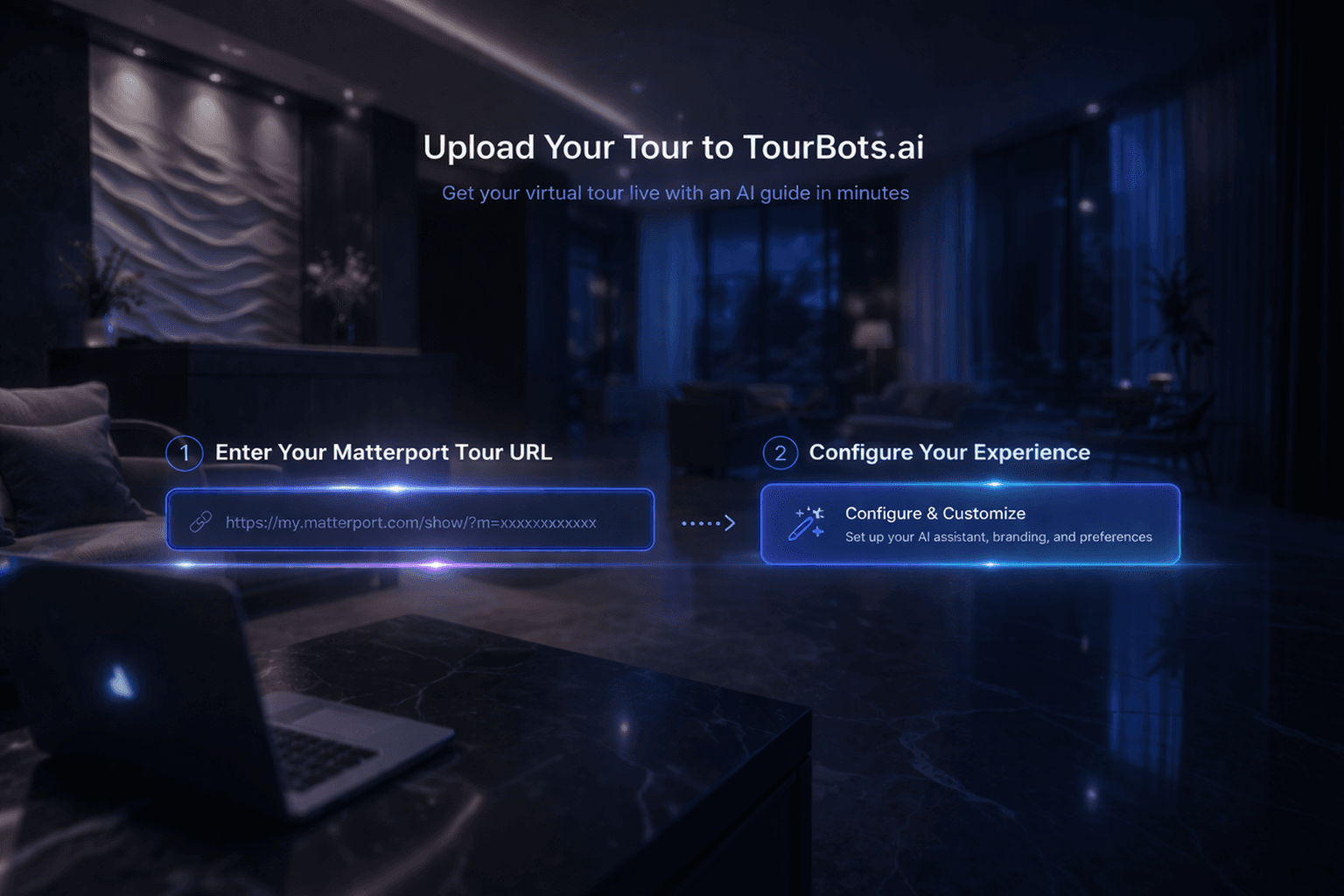
What this guide covers
This guide explains how to add multiple Matterport models under one tour location. You will keep one shared embed and one shared chatbot while allowing visitors to move between linked models.
Before you start
- Your primary tour location is already set up in Tours > Tour Setup.
- You have valid Matterport URLs for the additional models.
- You can open the Tours page without errors.
1) Open model management for the current tour location
- Go to Tours.
- Confirm the correct tour location is selected in the location selector.
- In the tour action bar, click the models button (for example,
1 modelor2 models).
This opens Manage Models in This Tour.
2) Confirm the primary model first
In the modal, review the Primary Model section:
- Confirm title and description are correct.
- Confirm the Matterport model ID is correct.
- Use Edit if the primary model details need correction.
This is important because additional models are linked to this primary location.
3) Add an additional model
- In Additional Models, click Add Model.
- Complete:
- Full Matterport URL
- Matterport ID
- Model Name
- Description (optional)
- AI Navigation Keywords (optional, comma-separated)
- Click Add Model to save.
Repeat this for each model you want inside the same tour location.
4) Use navigation keywords correctly
Add practical keywords visitors are likely to use, such as:
spasuiterestaurantconference room
These keywords help AI-guided navigation switch visitors to the correct model when relevant prompts are used.
5) Validate model switching in the location manager
- Open Manage Tour Locations from the tour location selector.
- Expand the current location.
- Confirm each model appears as either:
- Primary model, or
- Additional model
- Click each model to verify it becomes the active model.
If switching works, the model link setup is correct.
6) Test chatbot and menu behaviour after adding models
After model setup:
- Open Tour Setup and confirm the scene changes when selecting different models.
- Open Chatbot and test prompts that should trigger model navigation.
- Open Tour Menu and confirm buttons can target the right model/position flow.
This ensures your multi-model setup is operational end-to-end.
Common issues
- Model added to wrong location: Re-open the correct location first, then add the model there.
- Matterport ID not extracted: Paste the model ID manually.
- AI does not switch models: Refine navigation keywords and test clearer prompt phrasing.
- Wrong model appears active: Re-open Manage Tour Locations and reselect the intended model.
Validation checklist
- Primary model is correct and saved.
- At least one additional model is added successfully.
- Additional models appear in the same location grouping.
- Model switching works from location manager.
- Chatbot and menu flows operate correctly with the new model setup.
Final note
Use multiple models in one tour when all spaces belong to one location experience. If spaces should be managed as separate locations with separate operational ownership, use separate tours instead.